
Anker Soundcore speakers have quickly become a popular choice for those seeking high-quality sound, portability, and convenience. Offering a range of top-notch features, these speakers transform any gathering into an immersive audio experience. In this article, I’ll be sharing four easy ways to pair your Anker Soundcore speakers with various devices, ensuring you can enjoy your favorite tunes without any hassle.
Pairing your speakers doesn’t have to be difficult. With Anker Soundcore, you’ll find the process to be fairly simple, regardless of the device you’re using. From smartphones and tablets to computers and other Bluetooth-enabled devices, I’ve got you covered with step-by-step instructions that’ll lead you to a seamless pairing experience.
By following these straightforward methods, you’ll be able to effortlessly connect your Anker Soundcore speakers with your device of choice, enhancing your listening experience and letting you share your music with loved ones. So let’s dive into the world of seamless connectivity and get your Anker Soundcore speaker paired up in no time.
- Identifying Your Anker Soundcore Speaker Model
- Updating Speaker Firmware
- Utilizing the Anker Soundcore App
- Pairing Anker Soundcore Speakers via Bluetooth
- TWS Feature: Pairing Anker Soundcore Speakers
- PartyCast Feature: Connecting Multiple Speakers
- Troubleshooting Common Pairing Issues
- Caring for Your Anker Soundcore Speakers
- Expanding Your Soundcore Collection
- Conclusion: Seamless Sound Experience
Table of Contents
- Identifying Your Anker Soundcore Speaker Model
- Updating Speaker Firmware
- Utilizing the Anker Soundcore App
- Pairing Anker Soundcore Speakers via Bluetooth
- TWS Feature: Pairing Anker Soundcore Speakers
- PartyCast Feature: Connecting Multiple Speakers
- Troubleshooting Common Pairing Issues
- Caring for Your Anker Soundcore Speakers
- Expanding Your Soundcore Collection
- Conclusion: Seamless Sound Experience
Identifying Your Anker Soundcore Speaker Model
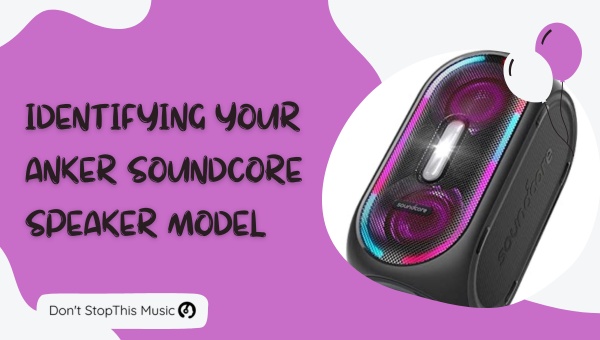
Before diving into the 4 easy ways to pair Anker Soundcore speakers, it’s essential to identify the specific model you have. Anker offers an impressive range of Soundcore speakers, each with unique features and compatibility. I’ll guide you through the process of identifying your Anker Soundcore speaker model, ensuring an effortless pairing experience.
First and foremost, check the packaging and manual that came with your Anker Soundcore speaker. The packaging should provide details such as the product name, model number, or a visual identification for your specific model, while the user manual provides even more information. Don’t worry if you’ve misplaced the packaging, there are other ways to identify the speaker model.
Most Anker Soundcore speakers have a product label that contains essential details, such as the model name or number. You can find this label either:
- On the bottom of the speaker
- On the back panel of the device
- Adjacent to the charging port
Alternatively, if you still struggle to locate your speaker model, you can visit the official Anker website or their authorized retailers to match your device with the listed products. Often, high-quality images accompanied by detailed descriptions make it easier to identify the model you own.
When identifying your Anker Soundcore speaker model, consider using model-specific keywords in your Internet search. Examples of such keywords are “Motion+”, “Flare 2”, or “Boost”. This approach helps you narrow down the search, enabling you to easily find the exact product and its specifications.
Lastly, let’s not forget the practical but often overlooked method of identification – ask for assistance. Reach out to Anker’s customer support or consult with fellow Anker users in online forums or communities. You might be pleasantly surprised by the helpful responses you receive from those who share your passion for Soundcore speakers.
In summary, identifying your Anker Soundcore speaker model is an essential first step in successfully pairing these powerful devices. Following any of the methods I’ve mentioned above will provide you with the necessary information, enabling you to correctly pair your speaker and benefit from its full potential. Once you’ve identified your specific model, you’ll be ready to explore the 4 easy ways to pair Anker Soundcore speakers.
Updating Speaker Firmware
Before we dive into the 4 easy ways to pair Anker Soundcore speakers, it’s essential to ensure that your speaker’s firmware is up-to-date. Keeping your Anker Soundcore speaker firmware updated can improve its performance, fix bugs, and enhance its compatibility with devices. In this section, I’ll walk you through the steps to update the firmware of your Anker Soundcore speaker.
First, you need to download the Soundcore app on your smartphone. The app is available for both iOS and Android devices. Simply visit the Apple App Store or Google Play Store, search for “Soundcore,” and install the app on your device.
After the app is installed, turn on your Anker Soundcore speaker and ensure it’s close to your smartphone. Make sure the speaker’s Bluetooth is enabled, allowing for seamless pairing with the app.
Next, open the Soundcore app on your smartphone and follow these steps:
- If prompted, give the app permission to access your device’s Bluetooth.
- Tap the “+” icon in the top right corner of the screen.
- Select your Anker Soundcore speaker model from the list of devices.
- Choose “Firmware Update” from the app’s menu on your smartphone.
If a firmware update is available for your speaker, it will appear on the screen. You can proceed with the update by tapping the “Update Now” button. The speaker may restart during the update process, so don’t be alarmed if this happens.
Here’s a brief summary of the update process:
- Download the Soundcore app
- Turn on your Anker Soundcore speaker
- Open the Soundcore app and pair your speaker
- Select your speaker model
- Choose “Firmware Update” and update if available
It’s important to note that not all Anker Soundcore speakers require a firmware update. If no updates are available for your device, it means that you’re already using the latest firmware version.
Now that we’ve covered the essential step of updating your speaker’s firmware, you’re ready to explore the 4 easy ways to pair Anker Soundcore speakers. These methods will provide you with more convenience and versatility, enhancing your overall listening experience.
Utilizing the Anker Soundcore App
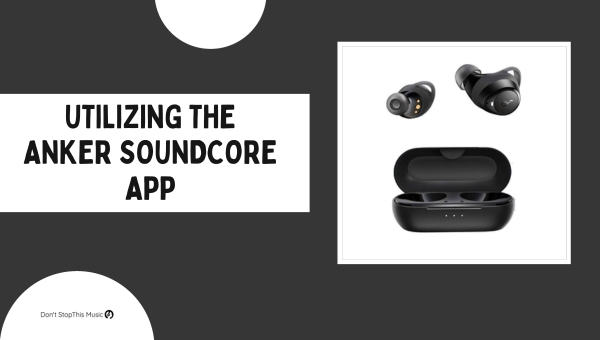
When it comes to pairing Anker Soundcore speakers with ease, one of the methods I recommend is utilizing the Anker Soundcore App. It’s a fantastic tool that makes connecting your speakers a breeze, and it’s not complicated at all. In this section, I’ll walk you through the app’s features and how to use them to successfully pair your Anker Soundcore speakers.
The Anker Soundcore App offers various features that cater to your needs. Some of these impressive features include:
- Customizable EQ settings
- Easy firmware updates
- Remote control options
- Support for TWS (True Wireless Stereo) pairing
For those who aren’t familiar with it, TWS pairing allows you to connect two compatible speakers, doubling the audio output and creating a true stereo sound experience. It’s perfect for those who want to enhance their listening experience even further.
Here comes the part you’ve been waiting for – how to use the Anker Soundcore App to pair your speakers.
- Install and launch the app: To get started, you’ll need to download the app from Google Play Store or the App Store, depending on your device. Don’t worry, it’s completely free. Once installed, open the app and follow the prompts to create an account or log in, if you haven’t done so already.
- Prepare your speaker: Make sure your Anker Soundcore speaker is turned on and in Bluetooth pairing mode. You’ll typically see a flashing blue light indicating it’s ready to pair.
- Connect to the speaker: In the app, select the “+” icon or go to the “Device” tab to add a new speaker. The app will then display a list of available devices, which should include your Anker Soundcore speaker. Tap on your speaker to connect it.
- Pairing TWS speakers: If you have a second compatible Anker Soundcore speaker and want to use TWS pairing, first make sure they’re both connected to the Anker Soundcore App. You can then follow the in-app instructions to successfully pair them as a stereo system.
Now that you’ve got the hang of utilizing the Anker Soundcore App, you’ll find pairing your speakers to be simpler and more efficient. With this fantastic app, you’ll enhance not only your listening experience but also your overall control of your Anker Soundcore speakers. Trust me, once you start using the app, you’ll find it hard to imagine your life without it.
Pairing Anker Soundcore Speakers via Bluetooth
When it comes to pairing Anker Soundcore speakers via Bluetooth, it’s a simple process that only takes a few steps. With the right instructions, you’ll be able to enjoy your music in no time. Here are the easy steps you need to follow:
Step 1: Power on your Anker Soundcore speaker
Turn on the speaker using its power button, typically located on the top or side of the device. It’ll emit a sound or display a light, indicating that it’s ready to pair.
Step 2: Enable Bluetooth pairing mode
Now, press and hold the Bluetooth button on your Anker Soundcore speaker until it starts blinking. This action will switch the speaker into pairing mode. Some speakers may automatically enter pairing mode when you turn them on, so you may not need to perform this step.
Step 3: Connect from your device
On your smartphone, tablet, or laptop, head to the Bluetooth settings and make sure Bluetooth is enabled. It’s time to search for the speaker in the list of available devices. Look for “Anker Soundcore” or something similar, and tap on it to connect. After a successful connection, you’ll hear a confirmation sound from the speaker.
Step 4: Enjoy your music
That’s it! Your Anker Soundcore speaker is now connected to your device, and you can start playing your favorite tunes.
To help you out further, here are some additional tips for pairing Anker Soundcore speakers:
- Remember to keep both the speaker and the device within a close range to ensure a stable connection.
- Make sure the speaker is adequately charged before attempting to pair it.
- If two devices are competing to connect to the speaker simultaneously, turn off the Bluetooth on one of them to avoid confusion.
By following these steps and tips, you’ll have no trouble pairing your Anker Soundcore speakers via Bluetooth. Happy listening!
TWS Feature: Pairing Anker Soundcore Speakers
True Wireless Stereo (TWS) technology has taken the audio world by storm, and Anker’s Soundcore speakers are no exception. Offering enhanced sound quality and seamless Bluetooth connectivity, these speakers can enhance your listening experience. In this section, I’ll guide you through four easy ways to pair your Anker Soundcore speakers.
Method 1: Pairing via the Soundcore App
One of the most straightforward ways to pair Anker speakers is through the dedicated Soundcore app, available for both iOS and Android. Simply follow these steps:
- Download and install the Soundcore app from the App Store or Google Play.
- Turn on your Anker Soundcore speakers and activate Bluetooth on your phone or tablet.
- Launch the Soundcore app and follow the on-screen instructions to pair your speakers.
Method 2: Pairing Manually
For a more hands-on approach, you can opt to pair your speakers manually. Here’s how:
- Turn on both Anker Soundcore speakers.
- Locate the Bluetooth button on each speaker and press it simultaneously.
- Wait for the LED lights on both speakers to flash, then release the buttons.
- Your speakers should now be connected in TWS mode.
Method 3: Pairing Multiple Soundcore Speakers
If you’re looking to create an immersive audio experience, you may want to connect multiple Anker Soundcore speakers. Luckily, many of the Soundcore models are designed with this feature:
- Press the Bluetooth button on each speaker for 3 seconds.
- The LED lights should begin to flash in sync.
- Once connected, the speakers will emit a sound to confirm their pairing.
Note: The number of speakers that can be paired simultaneously depends on the specific Soundcore model.
Method 4: Using NFC for Easy Pairing
For devices equipped with NFC (Near Field Communication), pairing your Anker Soundcore speakers can be even simpler:
- Activate NFC on your phone or tablet.
- Place your phone or tablet near the NFC logo on the speaker.
- A notification should appear on your device, allowing you to confirm the connection.
By following these easy methods, you’ll maximize the potential of your Anker Soundcore speakers and create a more enjoyable audio experience. Remember to refer to your speaker’s user manual for any specific instructions or requirements related to pairing.
PartyCast Feature: Connecting Multiple Speakers
Let me introduce you to the PartyCast feature, an efficient way to connect multiple Anker Soundcore speakers. This advanced feature takes your audio experience to the next level, allowing you to synchronize multiple speakers effortlessly. I’ll walk you through the process to create a seamless audio ambiance that’s perfect for parties or gatherings.
Before diving into the steps, it’s essential to know that PartyCast can connect over 100 speakers simultaneously, delivering a truly immersive audio experience. Moreover, this innovative technology is compatible with specific Anker Soundcore models: the Flare series, Rave series, and Trance series.
To get started with PartyCast, follow these easy steps:
- Update your speaker’s firmware: It’s crucial to ensure your Anker Soundcore speaker is running on the latest firmware. Access the Soundcore app, and it’ll notify you if an update is available.
- Choose the primary speaker: In a PartyCast setup, you’ll have one primary speaker that serves as the audio source. Identify the speaker you’d like to use, and make sure it’s connected to your audio playback device, such as a smartphone or tablet.
- Activate PartyCast mode: On the primary speaker, look for the PartyCast button, typically indicated with a chain-link icon. Press and hold this button for a few seconds until the LED light flashes, signaling that PartyCast mode is activated.
- Add additional speakers: For each additional speaker you wish to connect, press and hold their respective PartyCast buttons until they sync up with the primary speaker. You’ll hear a distinct tone when a successful connection is established.
To help you visualize the setup, here’s a breakdown of compatible speakers and their respective PartyCast buttons:
| Speaker Model | PartyCast Button Location |
|---|---|
| Flare 2 | Top of the speaker |
| Rave Neo | Top of the speaker |
| Trance Go | Top of the speaker |
Remember to keep a few things in mind for an optimal PartyCast experience:
- PartyCast operates on a linear network, ensuring a stable connection even when speakers are placed at varying distances.
- Maintain a reasonable distance between speakers for a balanced audio output.
- PartyCast does not support True Wireless Stereo (TWS) mode. If your speaker is in TWS mode, switch it off before initiating PartyCast.
By following these simple steps, you’ll be able to enjoy the phenomenal audio experience that PartyCast offers. Happy listening!
Troubleshooting Common Pairing Issues
We’ve all been there – trying to connect our Anker Soundcore speakers and running into pairing issues. But don’t worry, I’m here to help you with some easy-to-follow solutions. In this section, I’ll provide four common pairing issues and ways to resolve them.
Issue 1: Speaker won’t connect to the device
If your Anker Soundcore speaker isn’t connecting to your device, try the following steps:
- Make sure your speaker is fully charged or connected to a power source.
- Ensure your device’s Bluetooth is enabled, and it’s within range of the speaker (typically 33 feet or 10 meters).
- Restart your device and try connecting again.
- If possible, test the speaker with another device to rule out any issues with the device you’re trying to connect.
Issue 2: Connectivity issues with multiple Anker Soundcore speakers
When attempting to pair multiple Anker Soundcore speakers, bear in mind these tips:
- Check if the speakers you’re trying to connect are compatible with each other. Some models may not support multi-speaker pairing.
- Ensure both speakers are up to date with the latest firmware.
- Follow the specific pairing instructions in the user manual for each speaker.
Issue 3: Device connects and disconnects frequently
If your device keeps disconnecting from your Anker Soundcore speaker, consider the following fixes:
- Reset the Bluetooth connection by turning Bluetooth off and then on again on your device.
- Ensure there are no physical obstacles between the device and the speaker. Walls, doors, and certain materials can weaken the Bluetooth signal.
- Other devices with active Bluetooth connections might interfere with the speaker’s connectivity. Make sure you disconnect other devices from the speaker’s range.
Issue 4: Poor audio quality during playback
Experiencing poor audio quality can be frustrating, but there are possible solutions:
- Confirm the audio file quality is good. Low-quality files may not sound great on high-quality speakers.
- Make sure the connection between your device and the speaker is strong. A weak connection might result in choppy or distorted audio.
- If there are too many devices connected to your speaker, disconnect some to improve the audio quality.
By following these troubleshooting tips, you should be able to resolve most pairing issues with Anker Soundcore speakers. Remember, if you continue to encounter problems or have concerns about your speakers’ performance, it’s always best to contact Anker customer support for assistance.
Caring for Your Anker Soundcore Speakers
It’s essential to take good care of your Anker Soundcore speakers to ensure their longevity and maintain optimal performance. In this section, I’ll share some tips and suggestions on how to properly care for your speakers, keeping them in top-notch condition.
Cleaning your speakers is the first step to maintaining their pristine appearance and preventing any damage caused by dust and debris. To clean your Anker Soundcore speakers, follow these steps:
- Use a soft, dry cloth for wiping down their surface
- Gently clean the speaker’s grill with a soft brush, avoiding any excessive pressure that could damage the internal components
- NEVER use any harsh chemicals, abrasive materials, or water on your speakers as this could cause severe damage
The placement and storage of your speakers are also crucial factors in their overall maintenance. Keep these points in mind when finding the perfect spot for your Anker Soundcore speakers:
- Avoid placing them near heat sources, such as radiators or direct sunlight, as excessive heat can damage their internal components
- Keep your speakers away from moisture and high humidity areas, as water can cause short-circuits or lead to corrosion
- When not in use, store them in a clean, dry location away from any potential hazards
Regular firmware updates are an essential aspect of caring for your Anker Soundcore speakers. Updating the firmware ensures you’re getting the best possible audio experience by fixing any bugs, enhancing performance, and adding new features. Remember to:
- Regularly check for updates on the Soundcore app or the Anker’s official website
- Follow the provided instructions when updating your speakers
Lastly, it’s important to protect your speakers from physical damage. Here are some preventative measures you can take:
- Use a protective case or cover when transporting your speakers
- Be cautious when connecting and disconnecting cables, ensuring that it’s done gently without applying excessive force
- If your speaker doesn’t have built-in protection, use rubber feet or pads to avoid scratching the surface it sits on
By following these useful caring tips, you’ll ensure that your Anker Soundcore speakers remain in perfect working condition for years to come, providing you with an exceptional audio experience.
Expanding Your Soundcore Collection
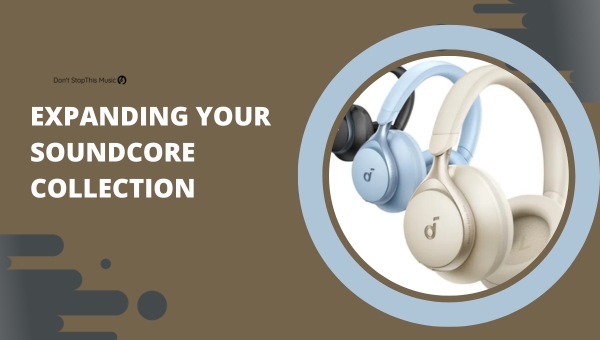
When it comes to enhancing my audio experience, I find it important to constantly expand my Soundcore speaker collection. Why? Not only does owning multiple compatible Soundcore speakers offer versatility in terms of use and application, but it also allows for a more immersive sound experience. Here are a few key reasons to consider expanding your Anker Soundcore speaker collection and how you can easily pair them.
- Versatility: Different occasions call for different speaker setups. Owning a variety of Soundcore speakers means you’ll always have the right speaker for the task, be it a large outdoor gathering, an intimate indoor setting, or on-the-go listening.
- Unified Ecosystem: Anker has created a seamless ecosystem of devices within the Soundcore lineup. This means it’s simple to switch between speakers depending on your needs, without worrying about compatibility issues.
Now, here are four easy ways to pair your Soundcore speakers:
- True Wireless Stereo (TWS): This feature enables two compatible Soundcore speakers to connect wirelessly and play audio in sync. Simply start by connecting one speaker to your phone first, then press and hold the TWS buttons on both speakers until they pair.
- PartyCast™: This technology allows you to connect over 100 compatible Soundcore speakers together. Start with one speaker connected to your device, then press the PartyCast™ button on it. On additional speakers, press and hold the Bluetooth button to join the party!
- Wireless Dual Audio: The Wireless Dual Audio feature can connect two different Soundcore speakers for simultaneous playback. Simply connect one speaker to your device, then press and hold the “+” and “Bluetooth” buttons on the second speaker until they’re paired.
- Auxiliary Cable Connection: For older or non-compatible Soundcore speakers, an Auxiliary cable (AUX) can be used to link two speakers. Simply connect the 3.5mm AUX cable to the designated ports on both speakers and press play.
Keeping these simple pairing methods in mind, expanding your Soundcore collection can open up exciting new possibilities for your audio experience. Remember, the more speakers you have within the Soundcore ecosystem, the greater your opportunities for tailoring your sound experience to your specific needs.
Conclusion: Seamless Sound Experience
I’ve shared my top 4 easy ways to pair Anker Soundcore speakers in this article. Using these methods will make connecting two speakers a breeze, so you can enjoy a seamless, immersive sound experience. The enhancing compatibility between Anker speakers not only elevates your listening experience but also makes it more versatile.
To recap, here’s what I covered:
- Pairing using the Soundcore app
- Connecting via Bluetooth directly
- Pairing within Soundcore ecosystem
- Using an auxiliary cable
Whether you’re a tech-savvy individual or someone who’s just getting started with Anker Soundcore speakers, these methods are straightforward and easy to execute. The goal is to improve the sound quality and create a better listening atmosphere for various occasions.
I hope these suggestions will help you make the most out of your Soundcore speakers. If you follow these tips, you’ll be well on your way to experiencing a seamless integration between the different devices. So, go ahead and try out these options to find the one that best suits your needs and enhances your listening experience.