
So you’ve got yourself a shiny new JBL speaker, and you’re ready to get the party started. But, the real question that a lot of people face when they purchase a Bluetooth speaker like this is, how do I connect this to my device? Fear not, dear reader, because I’ll guide you through the process of pairing JBL speakers to Windows, iOS, and Android. Let’s dive right in!
Pairing your JBL speakers to your device is an easy task if you know the steps. In this article, we’ll cover detailed instructions that will help you effortlessly connect your JBL speaker to any Windows, iOS, or Android device, ensuring that you get the best sound experience.
We’ll explore the different methods of pairing, from using the traditional Bluetooth settings to employing the JBL Connect app. Whether you’re attending a weekend barbecue or need high-quality sound for your workout sessions, these simple steps will allow you to seamlessly stream your favorite tunes from your device to your JBL speaker. So, let’s get your music playing without any delay!
- Understanding JBL Speaker Compatibility
- Pairing JBL Speakers to Windows Devices
- Connecting JBL Speakers to iOS Devices
- Syncing JBL Speakers with Android Devices
- Troubleshooting Common Pairing Issues
- Tips for Optimizing Bluetooth Connection
- Using JBL Speakers in a Multi-Speaker Setup
- Maintaining Your JBL Speakers' Performance
- Exploring Advanced JBL Speaker Features
- Wrapping Up: Seamless JBL Speaker Connectivity
Table of Contents
- Understanding JBL Speaker Compatibility
- Pairing JBL Speakers to Windows Devices
- Connecting JBL Speakers to iOS Devices
- Syncing JBL Speakers with Android Devices
- Troubleshooting Common Pairing Issues
- Tips for Optimizing Bluetooth Connection
- Using JBL Speakers in a Multi-Speaker Setup
- Maintaining Your JBL Speakers’ Performance
- Exploring Advanced JBL Speaker Features
- Wrapping Up: Seamless JBL Speaker Connectivity
Understanding JBL Speaker Compatibility
Before diving into the specifics of pairing JBL speakers with various devices, it’s crucial to gain an understanding of the compatibility aspects. JBL offers a wide range of speakers and audio devices, each with its own features and compatibility options. In this section, I’ll explore the factors that affect JBL speaker compatibility and provide insights that can help users make informed decisions when using JBL speakers with Windows, iOS, and Android devices.
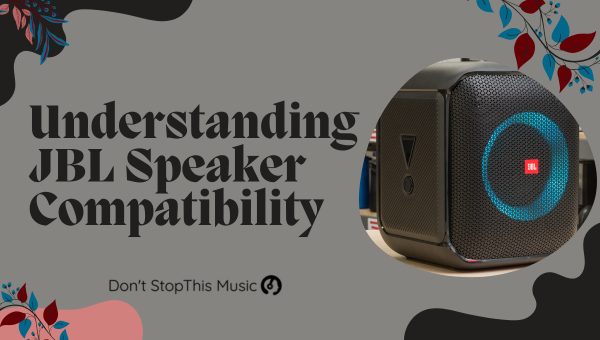
One major aspect to consider is the Bluetooth version of both the JBL speaker and the device you wish to pair it with. Each Bluetooth version comes with different capabilities and range, affecting its compatibility with devices. For example, Bluetooth 4.0 is the minimum requirement for most JBL speakers; however, you’ll achieve better performance if your devices have Bluetooth 4.1 or later. To check your device’s Bluetooth version, consult your device’s settings, system information, or user manual.
Another relevant factor is the type of JBL speaker. JBL produces various speaker models, each designed for specific purposes and with different device compatibility. Some JBL speakers, such as JBL Clip, JBL Charge, JBL Xtreme, and JBL Pulse, are designed with versatility in mind and can be easily connected to most devices. However, other models may require certain accessories or additional setup steps, which might influence their compatibility.
Additionally, the audio codecs supported by your JBL speaker and your device can impact their ability to pair successfully. Most JBL speakers support standard audio codecs like SBC, AAC, and aptX, providing compatibility with a wide range of devices. Yet, to achieve the highest audio quality, ensure that both your speaker and device support the same audio codecs.
Here’s a quick checklist to determine if your JBL speaker is compatible with your device:
- Bluetooth version: Verify if your device and JBL speaker support the same Bluetooth versions.
- Type of JBL speaker: Research the specific JBL speaker model to ensure compatibility with a broad range of devices.
- Audio codecs: Double-check that both your device and JBL speaker support matching audio codecs for the best audio quality.
In summary, to enjoy seamless pairing between your JBL speaker and a Windows, iOS, or Android device, it’s essential to understand the compatibility components. By considering the Bluetooth version, type of JBL speaker, and supported audio codecs, you’ll be well-equipped to get the most out of your JBL speakers.
Pairing JBL Speakers to Windows Devices
When it comes to pairing Bluetooth devices, the process can vary depending on the operating system. In this section, I’ll guide you on how to pair your JBL speakers to your Windows-powered devices.
First off, make sure your JBL speakers are turned on and charged, then set the speakers to pairing mode. Usually, this involves pressing the Bluetooth button on your JBL speaker until it starts flashing blue. The process may differ slightly for different JBL speaker models, so consult the user manual if you’re unsure.
Now let’s dive into connecting your speaker to a Windows device. Follow these steps for a hassle-free experience:
- Access the Bluetooth settings: Click on the Windows icon in the bottom left corner of your screen, then click on the gear icon to open the “Settings” menu. Once there, select “Devices.”
- Turn on Bluetooth: If it’s not enabled, toggle the switch to turn on Bluetooth.
- Add a device: Click on the “+” button next to “Add Bluetooth or other device.” A new window will open – choose “Bluetooth” as the type of device you want to add.
- Select your JBL speaker: Your Windows device will now search for nearby Bluetooth devices. Once your JBL speaker appears in the list, click on it to start the pairing process.
- Pairing complete: Wait for the connection to establish. You should hear a confirmation tone from your JBL speaker and see a notification on your Windows device that the pairing is successful.
Troubleshooting Tips:
If you’re having difficulty connecting your JBL speaker to your Windows device, try these quick tips:
- Ensure your JBL speaker is within range of your Windows device
- Make sure your JBL speaker isn’t already connected to another device
- Check if your Windows device is up to date with the latest driver and software updates
- Restart both your JBL speaker and Windows device, then attempt the pairing process again
In most cases, the steps above should help you successfully pair your JBL speaker to your Windows device. Armed with this knowledge, you can now enjoy high-quality audio from your JBL speakers on your Windows-powered devices. Don’t forget that this is the second section of ten, so be sure to explore the other sections for pairing your JBL speakers with iOS and Android devices!
Connecting JBL Speakers to iOS Devices
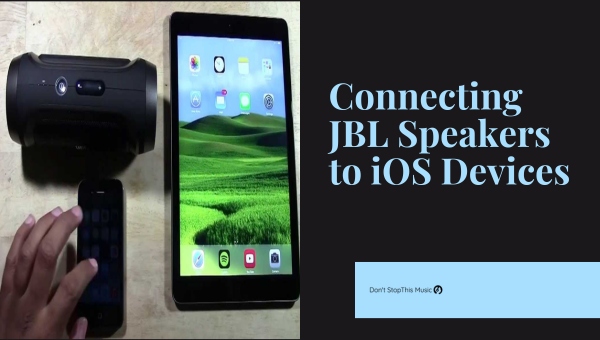
Pairing your JBL speakers with your iOS device is a breeze. Let’s explore the steps to connect your JBL speaker to an iPhone or iPad.
Step 1: Activate Bluetooth on your iOS device
Turn on your device, and navigate to the “Settings” app. Once there, tap on “Bluetooth,” and make sure the toggle switch is set to “On.” With Bluetooth activated, your iOS device is ready to connect to the JBL speaker.
Step 2: Turn on the JBL speaker
Switch on your JBL speaker by pressing the power button. It’ll light up, indicating that the speaker is on and ready for pairing.
Step 3: Enter pairing mode
For most JBL speakers, you’ll need to press the Bluetooth button to enter pairing mode. The speaker will produce an audible tone, and the Bluetooth button will flash blue, signaling that it’s in pairing mode.
Step 4: Find your JBL speaker on your iOS device
Go back to the “Bluetooth” settings on your iOS device. Your JBL speaker should now be listed under “Other Devices.” Tap on the speaker’s name, and the pairing process will begin.
Once the connection is successful, the JBL speaker will emit a confirmation tone, and the Bluetooth indicator will turn solid blue.
Here’s a quick recap of the steps:
- Turn on Bluetooth on your iOS device
- Activate your JBL speaker
- Enter pairing mode on your JBL speaker
- Locate and select your JBL speaker on your iOS device
Keep in mind that the specific pairing process might vary slightly depending on the JBL speaker model you own. Always refer to the speaker’s user manual if you encounter any difficulties.
Following these simple steps, you’ll have your iOS device connected to your JBL speaker in no time. Enjoy your favorite tunes and experience the convenience of wireless audio technology.
Syncing JBL Speakers with Android Devices
Pairing JBL speakers with your Android device is a breeze! You’ll appreciate the quick and straightforward process that I’ll outline in this section. So, let’s go through the step-by-step instructions on how to sync your JBL speaker with an Android device.
- Power up the JBL speaker. The first step is making sure your JBL speaker is turned on. Push down on the power button for a couple of seconds to fire it up. Once on, the speaker will emit a light or make a sound to indicate that it’s ready for pairing.
- Enable Bluetooth on your Android device. Now, grab your Android device and head to the settings menu. Locate the Bluetooth settings, and flip the switch to on. Your device will start scanning for available Bluetooth connections.
- Initiate pairing mode on your JBL speaker. Depending on your JBL speaker model, the method to enter pairing mode might differ. Usually, there’s a dedicated pairing button on the speaker, often denoted by a Bluetooth symbol or the word “pair.” Press and hold this button until a light starts blinking, or you hear an audible cue.
- Connect with the JBL speaker on your Android device. At this stage, your Android device should have detected the JBL speaker within its Bluetooth settings. Simply tap on the name of the JBL speaker, and the connection should be established in a matter of seconds.
To make this process even more transparent, here’s a summary of the steps:
- Turn on your JBL speaker
- Enable Bluetooth on your Android device
- Enter pairing mode on your JBL speaker
- Connect to the JBL speaker from your Android’s Bluetooth settings
Once the connection is made, you can enjoy your favorite tunes on your JBL speaker without any hassle. The next time you want to use it, connecting will be even faster since your Android device has already established a connection with your JBL speaker.
Note: If you’re experiencing difficulties while pairing, make sure your JBL speaker and Android device are within close range, as Bluetooth has a limited operational range. And don’t forget to refer to the speaker’s manual for specific instructions related to your particular JBL model. Happy listening!
Troubleshooting Common Pairing Issues
Pairing JBL speakers to different devices can sometimes be tricky. A few common issues might hinder the process, but don’t worry – I’ve got you covered. Let’s take a look at some common pairing problems and how to resolve them.
Problem 1: Bluetooth turned off
The first thing you’ll want to check is whether the Bluetooth feature on your device is turned on. Here’s how to enable Bluetooth on different platforms:
- Windows: Press the Windows key + A to open the Action Center. Click the Bluetooth icon to turn it on.
- iOS: Open the Settings app, tap Bluetooth, and ensure the switch is toggled on.
- Android: Swipe down from the top of your screen to access the Quick Settings panel. Tap the Bluetooth icon to enable it.
Problem 2: JBL speaker not in pairing mode
Next up, make sure your JBL speaker is in pairing mode. To put a JBL speaker in pairing mode, follow these steps:
- Press the Power button to turn on the speaker.
- Hold down the Bluetooth button for a few seconds until the speaker emits an audible chime.
Problem 3: Device not connecting to the JBL speaker
If your device still isn’t connecting to the JBL speaker, try the following solutions:
- Restart your device.
- Update your device’s operating system or the Bluetooth driver (on Windows devices).
- Move your device and JBL speaker closer together to avoid signal interference.
- Remove any obstacles between your device and the JBL speaker.
- Disconnect any other Bluetooth devices that might be interfering with the connection.
Problem 4: JBL speaker not being detected
When your device doesn’t detect your JBL speaker, follow these steps:
- Make sure your JBL speaker is properly charged, turned on, and in pairing mode.
- Remove your JBL speaker from the list of previously paired devices in your device’s Bluetooth settings, then try searching for it again.
- Try pairing your JBL speaker with another device to rule out any potential issues with the speaker itself.
In conclusion, troubleshooting pairing issues with JBL speakers usually involves just a few simple steps. By checking the Bluetooth connection, ensuring the speaker is in pairing mode, and trying various other solutions, you’ll usually be able to resolve most connection problems. Now go ahead and enjoy your favorite tunes on your JBL speaker!
Tips for Optimizing Bluetooth Connection
Ensuring a smooth Bluetooth connection is essential when pairing your JBL speakers to Windows, iOS, or Android devices. Here are some helpful tips to optimize your connection experience:
- Update your Bluetooth drivers: It’s important to keep your device’s Bluetooth drivers up-to-date for seamless connectivity. Regularly check for updates on your device’s official website or use the built-in update feature.
- Stay within range: Bluetooth devices usually have an optimal range of 30 feet (10 meters), although newer devices with Bluetooth 5.0 can have a range of up to 800 feet (240 meters). Keeping your JBL speaker and the paired device within this range helps maintain a strong connection.
- Minimize interference: Wireless devices or appliances, such as Wi-Fi routers, microwave ovens, and cordless phones, can cause interference with your Bluetooth connection. Try to keep these devices away from your JBL speaker and the paired device.
- Restart both devices: If you’re facing connectivity issues, a simple restart of both your JBL speaker and the paired device can resolve minor glitches.
- Clear the Bluetooth cache (Android): If you’re using an Android device, clearing the Bluetooth cache can improve connectivity. Go to Settings > Apps & notifications > See all apps > Bluetooth > Storage & cache > Clear cache.
For the best connection, follow these guidelines:
- Turn off other unused Bluetooth devices nearby to avoid confusion between multiple connections.
- Ensure your device or speaker isn’t in power-saving mode, as this may restrict Bluetooth functionality.
- When pairing a new device, remember to remove the old one from the list of previously connected devices.
Connection tips for specific devices:
- Windows: If your computer doesn’t have built-in Bluetooth, use a compatible Bluetooth adapter to connect your JBL speaker.
- iOS: Make sure the device is updated to the latest version of iOS. Go to Settings > General > Software Update to check for updates.
- Android: Make sure your Android device is updated to the latest version. Go to Settings > System > Advanced > System update to check for updates.
By following these tips, you’ll be able to optimize your Bluetooth connection and get the most out of your JBL speaker experience. Just remember to take into account the technical specifications of your specific devices and adapt accordingly. Happy listening!
Using JBL Speakers in a Multi-Speaker Setup
So you’ve got your JBL speakers and you’re ready to take your audio experience to the next level. No worries, I’m here to walk you through using JBL speakers in a multi-speaker setup. By the end of this section, you’ll be equipped with the knowledge to wirelessly connect JBL speakers to your Windows, iOS, and Android devices – all while optimizing sound quality and creating that perfect surround sound experience.
To begin with, it’s important to understand JBL’s Connect+ technology, which allows you to connect multiple JBL speakers and amplify the listening experience. This is the key feature we’ll be utilizing when setting up a multi-speaker arrangement.
Before diving into the setup process, let’s take a look at the compatible JBL speakers that work with Connect+:
- JBL Flip 4
- JBL Xtreme 2
- JBL Pulse 3
- JBL Charge 4
- JBL Boombox
Step 1: Power on JBL speakers
Turn on the JBL speakers you’d like to connect in a multi-speaker setup.
Step 2: Enable Connect+
Press the Connect+ button on one of the speakers. A small light will start flashing, indicating that the speaker is now in Connect+ mode.
Step 3: Connect additional speakers:
Press the Connect+ button on the other speakers you want to include in the setup. The speakers will begin to pair with one another, and once connected, the flashing Connect+ light will become steady.
Now that your speakers are connected to one another, it’s time to pair them with your device.
Pairing with Windows
- Open the Settings menu and choose Devices.
- Click Add Bluetooth or other device and select Bluetooth.
- Look for the desired JBL speaker in the list and click on it to establish a connection.
Pairing with iOS
- Access the Settings app and choose Bluetooth.
- Enable Bluetooth if it’s not already on.
- Scan for devices and tap on the JBL speaker when it appears.
Pairing with Android
- Open the Settings app and navigate to Connections.
- Tap on Bluetooth and enable it, if required.
- Scan for available devices and choose the JBL speaker to form a connection.
There you have it! With the steps mentioned above, you’re now prepared to elevate your audio experience using a multi-speaker JBL setup across various devices. Happy listening!
Maintaining Your JBL Speakers’ Performance
To keep my JBL speakers in top condition, I follow certain maintenance practices that help prolong their life and performance. Proper care can keep these speakers looking and sounding great for years to come. Here are a few important tips to maintain your JBL speakers’ performance:
1. Avoid exposing them to extreme temperatures: Make sure your speakers don’t get too hot or too cold, as this can cause damage to the components. Store them in a cool and well-ventilated area when they’re not in use.
2. Protect them from moisture and dust: Speakers and electronics don’t mix well with moisture or dust. Always keep them in a dry and clean environment. If you’re using them outdoors, make sure they’re designed for outdoor use, such as the JBL Flip or Charge models.
3. Regularly clean the speaker grilles: Dust and dirt can accumulate on the speaker grilles, which can affect sound quality. Gently clean the grilles using a soft brush or vacuum with a brush attachment.
4. Use a proper power source: Make sure you’re using the correct power supply for your speakers. Using an incorrect power source can overload and damage the electronics, while also decreasing the speaker’s lifespan.
5. Keep the volume at reasonable levels: Blasting your speakers at maximum volume for prolonged periods can cause them to overheat or damage internal components. Enjoy your music at a comfortable volume and give them a break every now and then.
6. Update the firmware: JBL often releases firmware updates for their speakers to improve performance and fix bugs. Make sure you’re using the latest firmware version by regularly checking the JBL Connect app for updates.
7. Handle with care: Finally, be careful when moving your speakers or packing them for transport. Always pack them securely to avoid damage from bumps or falls.
By following these simple steps, you can keep your JBL speakers in top condition and enjoy high-quality sound for a long time. Remember, investing the time and effort in maintaining your speakers will pay off in the long run.
Exploring Advanced JBL Speaker Features
When talking about JBL speakers, it’s impossible not to mention their wide range of advanced features. In this section, I’ll dive into some of these features, highlighting the benefits they offer, and how they can enhance your listening experience.
One noteworthy feature of many JBL speakers is the PartyBoost function. PartyBoost allows you to connect multiple JBL speakers simultaneously, effectively creating a more immersive sound experience. It’s an ideal feature for parties, gatherings, or even just for your own enjoyment:
- Easily connect multiple JBL speakers
- Create a more immersive sound experience
- Great for parties and gatherings
Another exciting feature found in JBL speakers is their voice assistant integration. Many JBL speakers are compatible with popular voice assistants like Google Assistant and Amazon Alexa, allowing you to control your speaker with simple voice commands:
- Compatible with Google Assistant and Amazon Alexa
- Control your speaker using voice commands
- Convenient hands-free operation
Additionally, several JBL speakers come with their own JBL Connect app. This app allows you to easily control various settings on your speaker, such as equalizer adjustments or updating firmware:
- Control JBL speaker settings from your smartphone
- Adjust equalizer settings for optimal sound
- Receive the latest firmware updates for your device
Waterproof and rugged design is another remarkable advanced feature of several JBL speakers. Models like the JBL Charge, Flip, and Xtreme series offer an IPX7 waterproof rating, ensuring you can enjoy your favorite tunes near the pool or the beach without any worries:
- IPX7 waterproof rating
- Ideal for poolside or beach use
- Protection from water damage
Lastly, powerful battery life is one feature that can’t be overlooked. Many JBL speakers boast an impressive battery life, allowing you to enjoy your music for extended periods without needing to recharge:
- Extended battery life for prolonged usage
- Reduced need for frequent recharging
- Enjoy your music for hours on end
These advanced features are just a few of the many reasons I believe JBL speakers have become so popular in the market. With such innovation and versatility packed into their products, it’s no wonder JBL continues to be a top choice for music lovers everywhere.
Wrapping Up: Seamless JBL Speaker Connectivity
I’ve walked you through the essential steps for connecting JBL speakers to various platforms. By following these instructions, you should now feel confident in pairing your speaker with Windows, iOS, and Android devices. Keep in mind that configuring Bluetooth settings and maintaining a stable connection can make all the difference in enjoying a seamless audio experience.
Let’s quickly recap the key points:
- Turning on your JBL speaker and enabling Bluetooth on your device is crucial for a successful connection
- For Windows users, navigate to the Bluetooth settings and look for your speaker’s name to pair
- iOS users need to access Bluetooth settings through the Control Center or Settings app and tap on the JBL speaker’s name
- Android users must access their Bluetooth settings and select the JBL speaker from the list of available devices
Finally, remember that technology is not infallible. Occasionally, issues may arise during the pairing process. Don’t get discouraged. Troubleshooting, such as resetting your speaker or clearing your device’s Bluetooth cache, might be necessary to resolve connectivity problems.
I hope this guide has helped you figure out how to pair your JBL speaker with your preferred device. Now go ahead, crank up the volume, and enjoy your favorite tunes. Happy listening!